
Looking for the coffee stick? Open the sachets area above the counter. The checked official scene places NESKAPE in the middle of its five dispensers, between ZestyTea and SKIBIDI.
Where is the coffee in Narinig Mo Ba?
Use the sachets ↑ section. NESKAPE is the coffee-stick product requested by Junjun at the start of Day 1; its item data sets the unit price to ₱10. In the checked scene layout it is the third dispenser from the left. Match the requested product icon and quantity before taking it.
The first coffee order is one stick, so its checked item total is ₱10. The amount paid is generated by the game; this is not a promise that Junjun always hands over a particular coin or note. Read the payment and change guide for the difference between an item total and the payment received.
Which build was checked?
Prices, item placement and desktop interaction rules on this page were checked in the public files of the official web build on . This was a static file inspection, not a completed playthrough or a touchscreen test. The checked game-data file has a SHA-256 beginning 9857845d982e. The separately hosted game on this portal may use a different build; follow its current prompts.
Read the shop screenshot
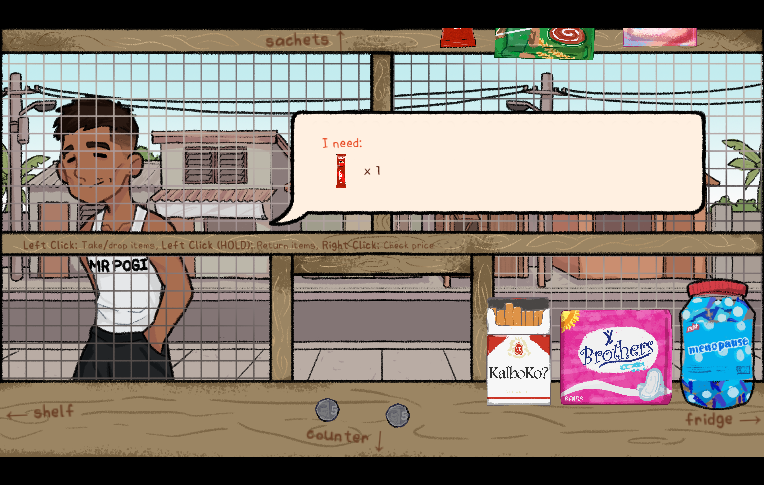
The current capture above shows the shop interface during Day 1. The creator-published promotional image below provides another view of its section labels; its order and left-click wording differ.
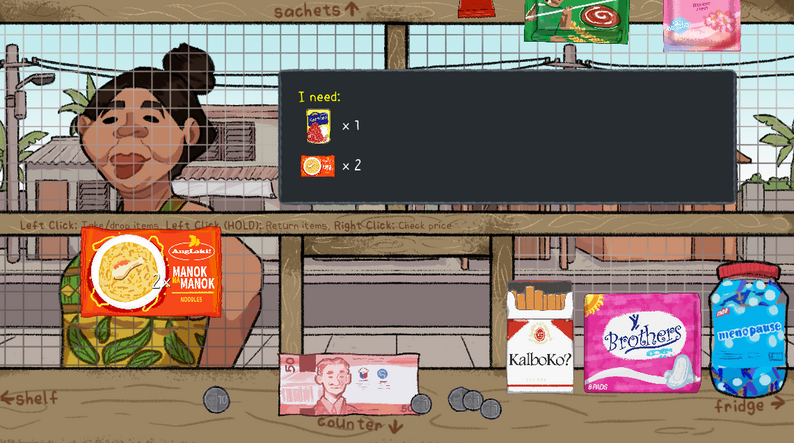
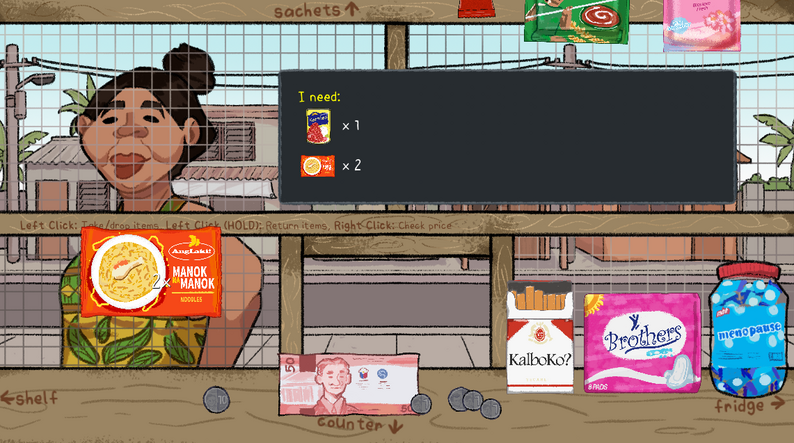
- Upper right: the order board
- The dark board says “I need:” and pairs product pictures with quantities. In this image, a can is marked ×1 and an orange packet is marked ×2. Use the pictures and counts in your own current order; these are an example visible in the screenshot.
- Above the shop: sachets
- The wooden strip reads “sachets ↑”, with hanging packets visible near the top. The NESKAPE location above comes from the checked scene file, not from guessing an unseen packet in this screenshot.
- Bottom left: shelf
- The lower strip labels “← shelf”. Look for that section label when you need to inspect the store’s shelf view.
- Bottom middle: counter
- The strip labels “counter ↓”. The screenshot shows the customer-facing workspace with products and money. Keep the current order in mind as you inspect other sections.
- Bottom right: fridge
- The strip labels “fridge →”. Use the game’s visible section control to inspect that area; the screenshot alone is not a complete refrigerator inventory.
Use the product controls shown by the game
The promotional screenshot prints three desktop controls. In a 15 October 2026 check of the official HTML5 build, the left-click label read “Take/drop items”; the older image above reads “Drag/drop items”. Follow the wording on your active screen.
- Left click: take/drop items
- The checked desktop logic lets you take an item with a short click. Short clicks on the same dispenser add more of that product to the held stack when the item is stackable. Match the requested quantity instead of repeatedly clicking without counting.
- Left click (hold): return items
- The return action requires a matching dispenser whose return setting is enabled, with a hold of at least half a second. It is not a universal undo: the five sachet dispensers, including coffee, have that setting off in the checked scene.
- Right click: check price
- First take the product so it is held, then hold the right mouse button to show its unit price. Release the button to see the quantity again. Use the current game’s value if it differs from the file-based examples here.
These desktop labels do not prove a long-press gesture or a particular touch layout. For phones, use the official touchscreen release and mobile guide.
Work through one order without guessing the product
- Read the request and check the pictures and quantities on the order board. A quantity of two means two units of that pictured product.
- Inspect the shelf, sachet or fridge section using the labels available in your current scene. Compare the requested picture with the product, rather than relying on its color alone.
- Take the product, then use the price-check control when the current prompt provides it. Record the unit price before multiplying by quantity.
- Count the held quantities. A held return works only with a matching, return-enabled dispenser; do not assume it can remove a coffee stick or another sachet.
- Click an open location to drop the held product into the customer’s item-receiving area. The checked receiver accepts the requested product and quantity. Read any remaining prompt; this is a file-checked control rule, not a tested hotspot map for every scene.
Add quantities before calculating change
Two units of one item count twice toward the order total. The change guide uses Lucia’s checked Day 1 order: one ₱40 Kornbep corned beef and two ₱9 Manok na Manok soup noodles total ₱58. It explains how a ₱100 payment would require ₱42 change, separately from the invented practice exercises.
Open the change calculator in a separate tab and enter the total and payment you actually read in the game. The calculator cannot read the embedded game or identify a product for you.
If the order or input does not respond
First click inside the game area and re-read the current prompt. A product mismatch, a different quantity and a browser focus problem are different checks. For unresponsive clicks or a missing game window, use the input and loading help before reloading.
Return to the first-shift guide for the wider sequence. This page covers the shop interface without revealing story outcomes.
Sources checked : official game release and the creators’ mobile announcement.